Monday, 26 May 2014

Basic Arduino Instructions

What you need....


  1. Computer / Laptop or Netbook
  2. Arduino Microcontroller
  3. USB to Serial Adapter (if your microcontroller does not have a USB port)
  4. Appropriate USB cable (Arduino boards draw power from the USB port – no batteries yet)
Here it begins...

The Arduino language is CASE SENSITIVE: a capital letter is not the same as a lower case letter. The following code represents the minimum in order for a program to compile:
Arduino 5 Minute Tutorials
The “void setup()” section is widely used to initialize variables, pin modes, set the serial baud rate and related. The software only goes though the section once.
The “void loop()” section is the part of the code that loops back onto itself and is the main part of the code. In the Arduino examples, this is called “Bare Minimum” under File-> Examples -> Basics. Note that you are free to add subroutines using the same syntax:
void subroutinename() {}
Almost every line of code needs to end with a semicolon ‘;’ (there are a few exceptions which we will see later). To write single line comments in the code, type two back slashes followed by the text:
//comments are overlooked when compiling your program
To write multi-line comments, start the comment with /* and end with */
/* This is a multi-line comment and saves you having to always use double slashes at the beginning of every line. Comments are used used to explain the code textually. Good code always has a lot of comments.*/

Serial Communication

The Arduino board can communicate at various baud (“baud rates”). A baud is a measure of how many times the hardware can send 0s and 1s in a second. The baud rate must be set properly for the board to convert incoming and outgoing information to useful data. If your receiver is expecting to communicate at a baud rate of 2400, but your transmitter is transmitting at a different rate (for example 9600), the data you get will not make sense. To set the baud rate, use the following code:
void setup() {
Serial.begin(9600);
}
9600 is a good baud rate to start with. Other standard baud rates available on most Arduino modules include: 300, 1200, 2400, 4800, 9600, 14400, 19200, 28800, 38400, 57600, or 115200 and you are free to specify other baud rates. To output a value in the Arduino window, consider the following program:
Arduino 5 Minute Tutorials
Verify the program by pressing the “verify” button (looks like a “play” button in order version or a check sign in Arduino 1.0); you should not get any errors at the bottom of the screen. If you get errors, check that only the two numbers in the code are black, the rest of the text should have been automatically recognized and assigned a color. If part of the text is black, check the syntax (often copy/pasting text from another program can include unwanted formatting) and capitalization.
Next, upload the sketch to the board using the “Upload to I/O Board” button (arrow pointing right). Wait until the sketch has finished uploading. You will not see anything unless you then select the “Serial Monitor” button (rectangle with a circle that looks like a TV in the old software, or what looks like a magnifying glass in the new software). When you select the serial monitor, make sure the baud rate selected is the same as in your program. If you want to save all your programs, we suggest creating a new folder called “reference” and save this program as Hello World.

Blink LED Program

Connect the board to the computer if it is not already connected. In the Arduino software go to File ->  Examples -> Basics -> Blink LED. The code will automatically load in the window, ready to be transferred to the Arduino. Ensure you have the right board chosen in Tools -> Board, and have the right COM port as well under Tools -> Serial Port. If you are not sure which COM port is connected to the Arduino, (on a Windows machine) go to Device Manager under COM & Ports.
Press the “Upload” button and wait until the program says “Done Uploading”. You should see the LED next to pin 13 start to blink. Note that there is already a green LED connected to most boards – you don’t necessarily need a separate LED.


Understanding Blink LED Code
From Lesson 2 you will recognize the basic code void setup(){} and void loop(){}. You will also recognize the green commented sections. The three new lines of code you have not seen before are:
pinMode(13, OUTPUT);
This sets pin 13 as an output pin. The opposite, being INPUT, would have the pin wait to read a 5V signal. Note that the ‘M’ is capitalized. A lower case ‘m’ would cause the word “pinmode” to not be recognized.
digitalWrite(13, HIGH); and digitalWrite(13, LOW);
The line digitalWrite(pin, HIGH); puts a specified pin high to +5V. In this case we chose pin 13 since on the Uno, the LED is connected to pin 13. Replacing HIGH with LOW, the pin is set to 0V. You can attach your own LED using a digital output and the GND pin. Note that the ‘W’ is capitalized.
delay(1000);
The delay(1000); line causes the program to wait for 1000 milliseconds before proceeding (where 1000 is just a convenient example to get a 1 second delay). Note that during a delay, the microcontroller simply waits and does not execute any additional lines of code.

Special Note

Pin 13 incorporates a resistor with the LED, whereas none of the other digital pins have this feature. If you want to connect one or more LEDs to the other digital pins, you need to add a resistor in series with the LED.


Suggest in the comments new topic to be discussed........

Saturday, 24 May 2014

12V to 24V DC Converter Circuit

The circuit which we have explained below is used to generate the output voltage whose magnitude is just double of the supplied input voltage. In our circuit, we have supplied 12 volt in the input terminal and receives 24 volts approximately at the output terminal. The basic building block of the circuit made around a very well known IC CD4049 which is a hex inverter. This can be constructed, with the support of single IC along with some other components.
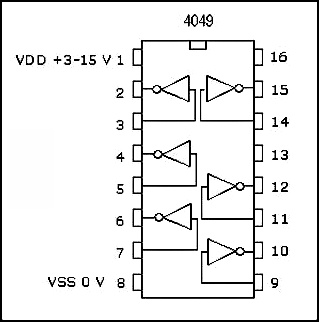
IC CD4049
As shown in the above figure, CD4049 holds six inverter gates on a single package. In this IC, for input purpose pin 3 is used while for the output purpose, pin 2 is used for the first gate. In the same way for the second gate, pin 5 is used as input and pin 4 as an output terminal and in the same manner for rest all the gates. For the supply voltage pin 1 is used and for the ground purpose pin 8 is used. While pin number 13 and 16 are not used. The IC works on the voltage range from 3V to 15V excessive voltage more than 15V will destroy the IC. So provide input voltage in the range of 3V to 15V.

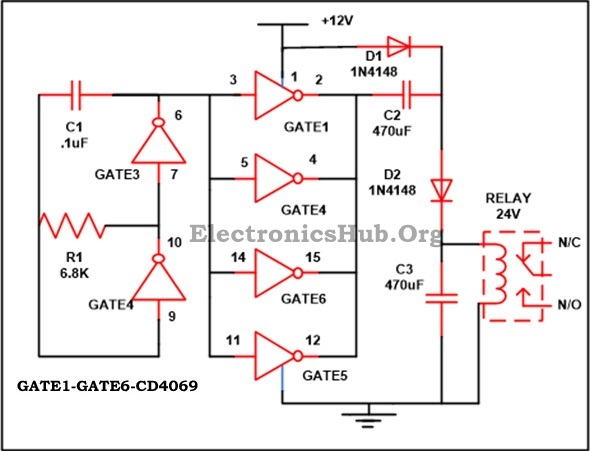
Circuit Diagram of 12V to 24V DC Converter:

12V to 24V DC Converter Circuit Diagram
12V to 24V DC Converter Circuit Diagram 
Description:
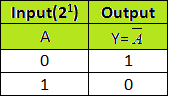
In this circuit for doubling the input voltage, we are using NOT gate CD4049 IC. In this circuit, we are using all 6 gates of NOT gate. Before getting familiar with the working of the circuit it is important that one should get familiar with the NOT gate truth table which is as follows-
NOT Gate Truth Table
In the NOT, if we supply logic low (i.e. 0) In the input terminal then we receive logic high (i.e. 1) at the output terminal. Similarly, if we give logic high (i.e. 1) at the input terminal then we receive logic low (i.e. 0) at the output terminal.
As describe above CD4049 holds six inverter gates on a single package. In this IC for input is given to pin 3 is  while output is taken from pin 2 from the first gate. In the same way for the second gate pin 5 is used as input and pin 4 as an output terminal and in the same manner for rest all the gates. Connect pin 1 to power supply and pin 8 to ground.
Assemble the circuit properly and now provide power supply. In this circuit we are utilizing  all six gates of the NOT gate. With the assist of the pin 3 and pin 4 we have firstly construct an oscillator along with capacitor C1 as well as resistor R1.With the help of value of R1 and C1 the oscillation frequency is calculated. The reset left gates are connected to the parallel to work like a buffer. All the input pin i.e. 3, 5, 11 and 14 are linked together and connected with the frequency source through oscillator. In the same way all the output pins, i.e. 2,4,12 and 15 are linked together and connected to the voltage enhance circuit.
By the support of the capacitor as well as resistor a voltage multiplier circuit can be constructed. This circuit is mainly used at the time when we need to produce more output voltage as compared with the given input voltage. In this circuit, we are using largely accepted generally employed half wave series multiplier.
For the construction of the voltage doubler circuit, we have a requirement of 2 diodes, 2 capacitors along with an oscillating voltage.As you can find in the circuit diagram that the diode D1 works in the forward bias state and which in turn charge the capacitor C2 till it reaches to the peak value of input voltage supply which is now rotate like a battery in series along the power supply. At the similar period of time diode D2 starts conducting due to diode D1 and capacitor C3 charges. Hence the voltage that we receive at the C3 is the total voltage of the voltage supply and the voltage across capacitor C2. The chief advantage of this circuit is that it permits to produce higher value of voltage from a very low value of input source voltage and there is no need to use a transformer in the circuit.
So at the output terminal of the diode D2 you can run 24V relay with the assist of 12V of power supply.
Required Components:
  • IC
  • CD4049 – 1
  • Resistor
  • R1(6.8K) – 1
  • C1(.1uF) – 1
  • C2,C3(470uF) – 2
  • D1,D2(1N4148) – 2
  • RELAY – 1
Comment your views...!!!!!!

BCD to 7 Segment LED Display Decoder Circuit

A display decoder is used to convert a BCD or a binary code into a 7 segment code used to operate a 7 segment LED display. It generally has 4 input lines and 7 output lines. Here we design a simple display decoder circuit using logic gates. Even though commercial BCD to 7 segment decoders are available, designing a display decoder using logic gates may prove to be beneficial from economical as well as knowledge point of view.

Principle Behind Display Decoder Circuit:

The basic idea involves driving a common cathode 7-segment LED display using combinational logic circuit.  The logic circuit is designed with 4 inputs and 7 outputs, each representing an input to the display IC. Using Karnough’s map, logic circuitry for each input to the display is designed.

Theory Behind the Circuit:

The first and foremost aspect of this circuit is decoder. A decoder is a combinational circuit which is used to convert a binary or BCD (Binary Coded Decimal) number to the corresponding decimal number. It can be a simple binary to decimal decoder or a BCD to 7 segment decoder.
Another relevant section is the combinational logic circuitry. A combinational logic circuit is a system of logic gates consisting of only outputs and inputs. The output of a combinational logic circuit depends only on the present state of the inputs and nothing else. Best examples of such circuits are Encoders and Decoders, Multiplexers and De-multiplexers, Adders, Subtractors etc.
To understand the design and operation of these logic circuits, one needs to have a good knowledge about Boolean algebra and logic gates. For example few basic Boolean algebra rules to be followed are the complementary law, associative law, De-Morgan’s law etc. The De-Morgan’s law states how ‘AND’ of two NOTs can be converted to a single NOR. In other words, (NOT A) AND (NOT B) can be changed to A NOR B.
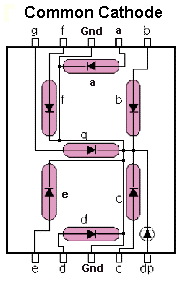
A 7 segment LED display consists of an arrangement of 8 LEDs such that either all the anodes are common or cathodes are common.  A common cathode 7 segment display consists of 8 pins – 7 input pins labeled from ‘a’ to ‘g’ and 8th pin as common ground pin.
Practically BCD to 7 segment decoders are available in form of integrated circuits such as 74LS47.  Apart from regular 4 input pins and 7 output pins, it consists of a lamping test pin used for segment testing, ripple blanking input pin used to blank off zeros in multiple display systems, ripple blanking output pin used for cascading purposes and a blanking input pin.

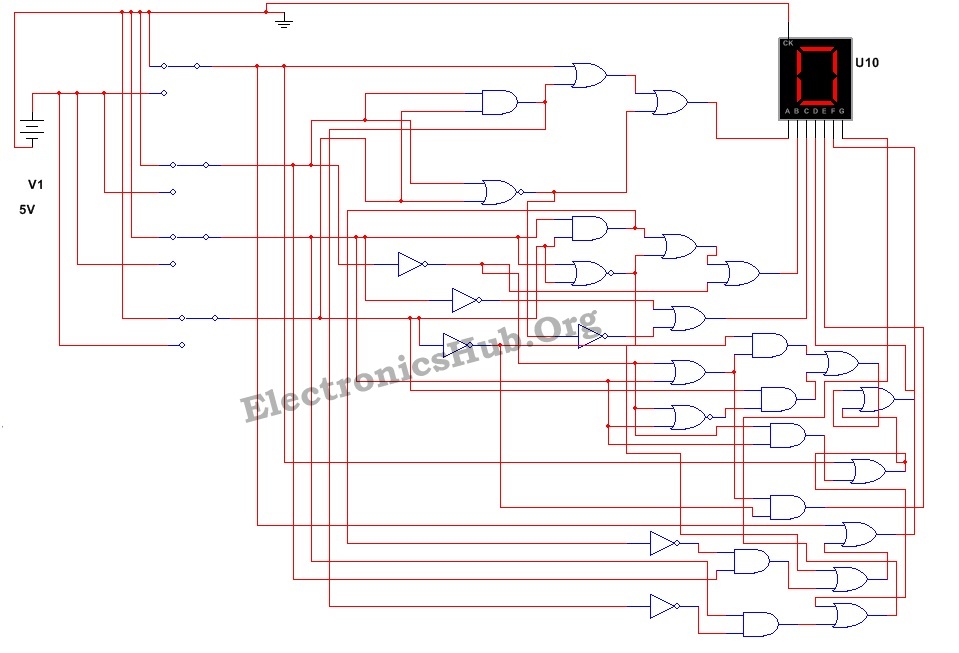
Circuit Diagram of BCD to Seven Segment LED Display Decoder:

BCD to 7 Segment Display Decoder Circuit Diagram
BCD to 7 Segment Display Decoder Circuit Diagram 
Display Decoder Circuit Components:
  • IC 7405 – Hex Inverters (NOT gates)
  • Two IC 7408 (Quad AND gates)
  • Three IC 7432 (Quad OR gates)
  • IC 7402 (Quad NOR gate)
  • 4 DPST switches
  • Common cathode 7- segment LED display
  • 5 V Battery

7 Segment Display Decoder Circuit Design:

Step 1: The first step of the design involves analysis of the common cathode 7-segment display.  A 7-segment display consists of an arrangement of LEDs in an ‘H’ form.  A truth table is constructed with the combination of inputs for each decimal number. For example, decimal number 1 would command a combination of b and c (refer the diagram given below).
Common Cathode 7 –Segment LED
7 Segment LED
Image Resource Link: www.thelearningpit.com
Step 2: The second step involves constructing the truth table listing the 7 display input signals, decimal number and corresponding 4 digit binary numbers.  Given below is the truth table:
Inputs
   
In Decimal
Outputs
      
A
B
C
D
a
b
c
d
e
f
g
0
0
0
0
0
1
1
1
1
1
1
0
0
0
0
1
1
0
1
1
0
0
0
0
0
0
1
0
2
1
1
0
1
1
0
1
0
0
1
1
3
1
1
1
1
0
0
1
0
1
0
0
4
0
0
1
0
0
1
1
0
1
0
1
5
1
0
1
1
0
1
1
0
1
1
0
6
0
0
1
1
1
1
1
0
1
1
1
7
1
1
1
0
0
0
0
1
0
0
0
8
1
1
1
1
1
1
1
1
0
0
1
9
1
1
1
1
0
1
1
Step 3: The third step involves constructing the Karnough’s map for each output term and then simplifying them to obtain a logic combination of inputs for each output. After significant mapping and simplification, each output signal can be summarized below
  • a =   (A OR C) OR (B AND C) OR (B NOR D).
  • b = (NOT B) OR (C NOR D) OR (C AND D).
  • c = B OR D OR (NOT C)
  • d = (B NOR D) OR (C AND (B NAND D)) OR (B AND D AND (NOT C)) OR A
  • e = (B NOR D) OR (C AND (NOT D))
  • f = A OR (C NOR D) OR (B AND (C NAND D))
  • g = A OR (B AND (NOT C)) OR (C AND (B NAND D))
Step 4: The final step involves drawing a combinational logic circuit for each output signal. Once the task was accomplished, a combinational logic circuit was drawn on Multisim using 4 switches as inputs and a 7- segment display as output.

Display Decoder Circuit Operation:

The circuit operation can be understood through the truth table itself. When all the switches are connected such that each input is grounded, the output of the combinational logic circuit would be so as to drive all the output LEDs except ‘g’ to conduction.  Thus the number 0 will be displayed. Similar operation would take place for all other combinations of the input switches.

Applications of Display Decoder Circuit:

  1. This circuit can be modified using timers and counters to display the number of clock pulses.
  2. This circuit can be modified to develop an alphabet display system instead of a decimal number display system.
  3. It can be used as a timer circuit.

Limitations of Display Decoder Circuit:

  1. This circuit involves lot of logic gates and is quite complex.
  2. Timing delay by each logic gate is a matter of concern and this circuit might not produce accurate results when used to display count of pulses.
  3. This is a theoretical circuit and may require few modifications.

Pages